
How to adjust your rates
How to adjust your rates
This guide covers the two methods available for adjusting your rates in Integrated Rate Management.
Method 1: Rate Adjustment tool
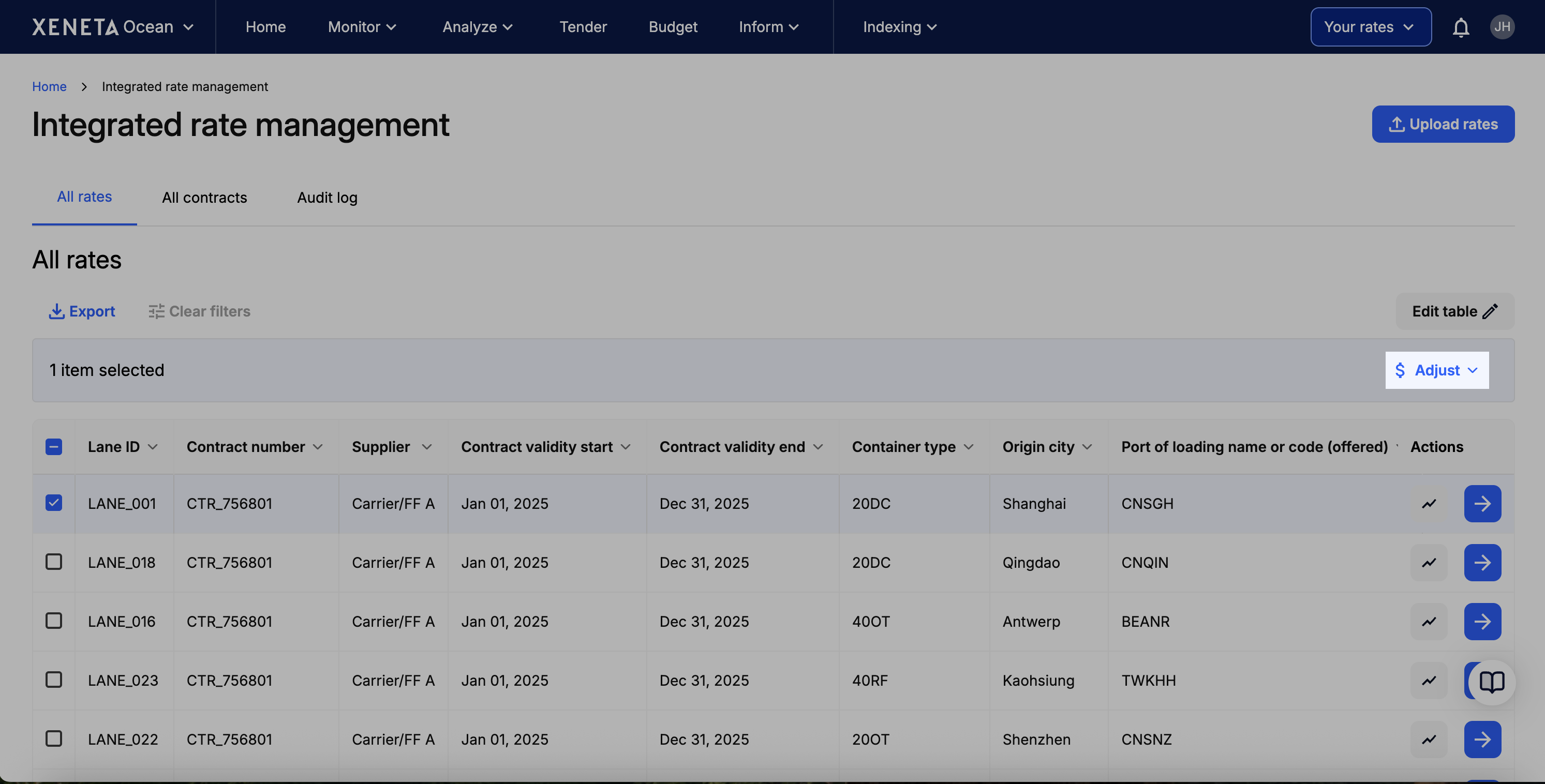
The Rate Adjustment tool lets you quickly update rates and charges in bulk by either a fixed amount or a percentage, without needing to prepare and upload a new rate sheet.
Step 1. Select the rate(s) you wish to adjust in the All Rates table and click Adjust.
Step 2. Choose your options from the dropdowns:
| Field | Options |
|---|---|
| Charge | Core rate components (Ocean Rate, Pre-carriage, On-carriage, OTHC, DTHC) and your uploaded surcharges (e.g. BAF, PSS, Destination fuel) |
| Adjustment | Increase or Decrease for all charges. Add or Remove for surcharges only (core rate components cannot be added or removed). |
| Metric type | % change, Unit rate per container, or Unit rate per TEU |
| Value | Your numeric value |
Step 3. Click Apply changes. The updates are applied immediately to all selected rates.
Example: You've received a notification from your carrier about an 8% BAF increase. Select the relevant rates, choose BAF, Increase, % change, enter 8, and click Apply changes. Done in a few clicks, with no formulas or manual edits.
Method 2: Adjusting rates via upload
If you prefer to update your rates by uploading a new rate sheet, you can prepare your changes in the Xeneta rate sheet template and upload it in the same way as your original upload.
How the system identifies which rate to update
When you upload a rate sheet, the system checks whether each rate matches an existing rate based on the following fields (all must match, with an overlapping validity period):
- Contract number
- Supplier
- Container type
- Port of loading
- Port of discharge
- Origin service details (service mode, street address, city, state/province, ZIP code, country, and country code)
- Destination service details (service mode, street address, city, state/province, ZIP code, country, and country code)
- Hazardous classification
If all of these match, the system treats it as an update to the existing rate and will show you a side-by-side comparison of the current and new values for confirmation. You can either accept all updates or cancel. If any of these fields differ, the system treats it as a new distinct rate.
How surcharges are handled during an update
Once a matching rate is identified, each surcharge is evaluated independently. The system compares what you've uploaded against what currently exists and determines whether to add, update, or remove each charge.
Leave a surcharge blank to keep it unchanged. If your upload doesn't include a value for a surcharge, the existing value is preserved. You don't need to include every surcharge in your upload, only the ones you want to change.
Set a surcharge to zero to remove it. The system treats zero as a removal, not as an update to a zero value.
New surcharges are added automatically. If your upload includes a surcharge that doesn't currently exist on the rate and the value is not zero, it will be added.
Some surcharges have fixed validity periods. Certain charges (e.g. LSS, CAF, GRI, ISPS, and others) always inherit the full contract validity period. You cannot set custom start and end dates for these. Other charges (e.g. BAF, PSS, WRS, EU ETS, Suez Canal, Panama Canal, Origin/Destination Fuel, Origin/Destination Port Charges) support custom validity dates. If you don't provide dates for these, the system defaults the start date to today (or the contract start date if later) and the end date to the contract end date.
Currency and unit of measurement are preserved. When updating a surcharge, the system always keeps the original currency and unit of measurement, even if different values are provided in your upload.
Updated 5 months ago