
Exports
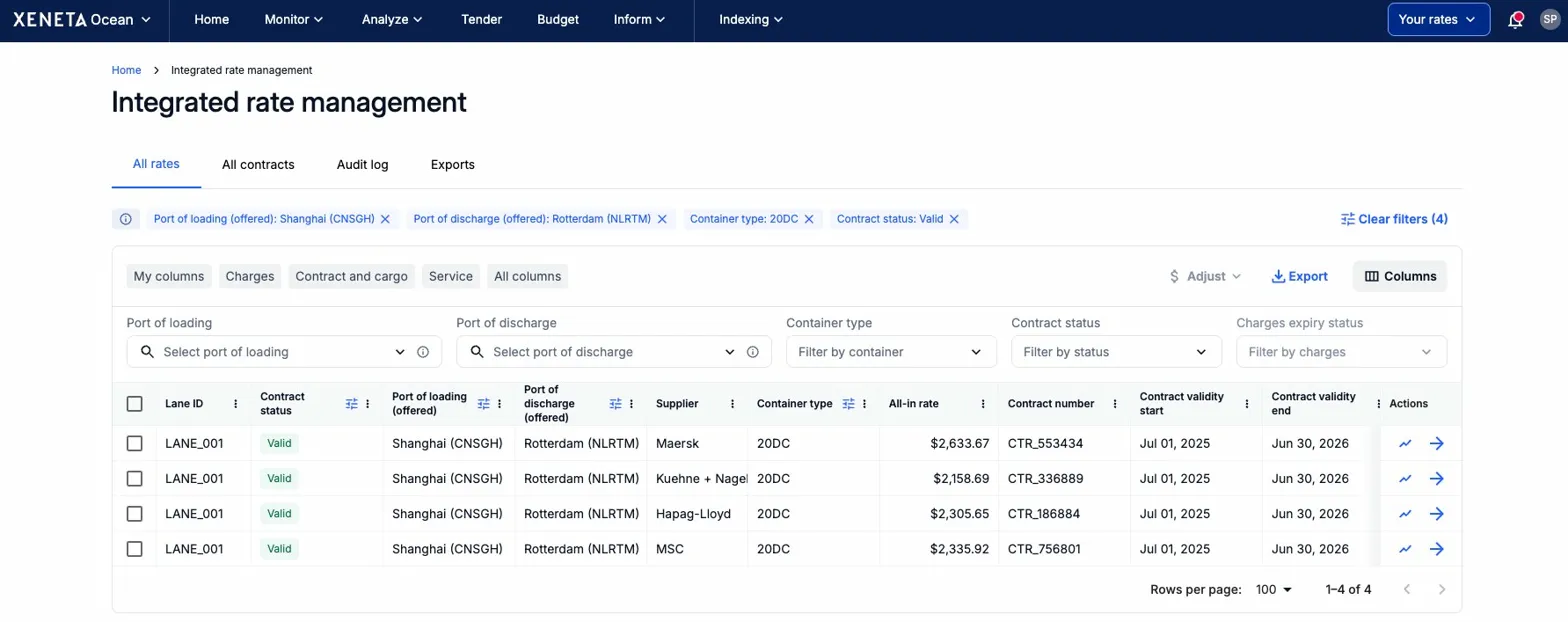
Selecting which rates to export
The export respects any filters you have applied in the All Rates table. If you want to export all of your rate data, simply ensure no filters are active before clicking Export. If you only need a subset, apply your filters first (e.g. a specific port pair, container type, or contract status) and then click Export. Only the filtered rows will be included.
Choosing your columns
When you click Export, a column selection dialog appears where you can choose exactly which columns to include in your export file.
By default, the export includes all columns that contain data. This is useful when preparing for an RFQ, as your existing rate structure is ready to go. You can then add empty columns from the base template if you want to restructure your rates or request additional information from suppliers, or remove columns you don't need.
This same flexibility makes exports useful for custom reporting. Choose only the columns relevant to your audience, whether that's a procurement summary, a finance reconciliation, or a management overview.
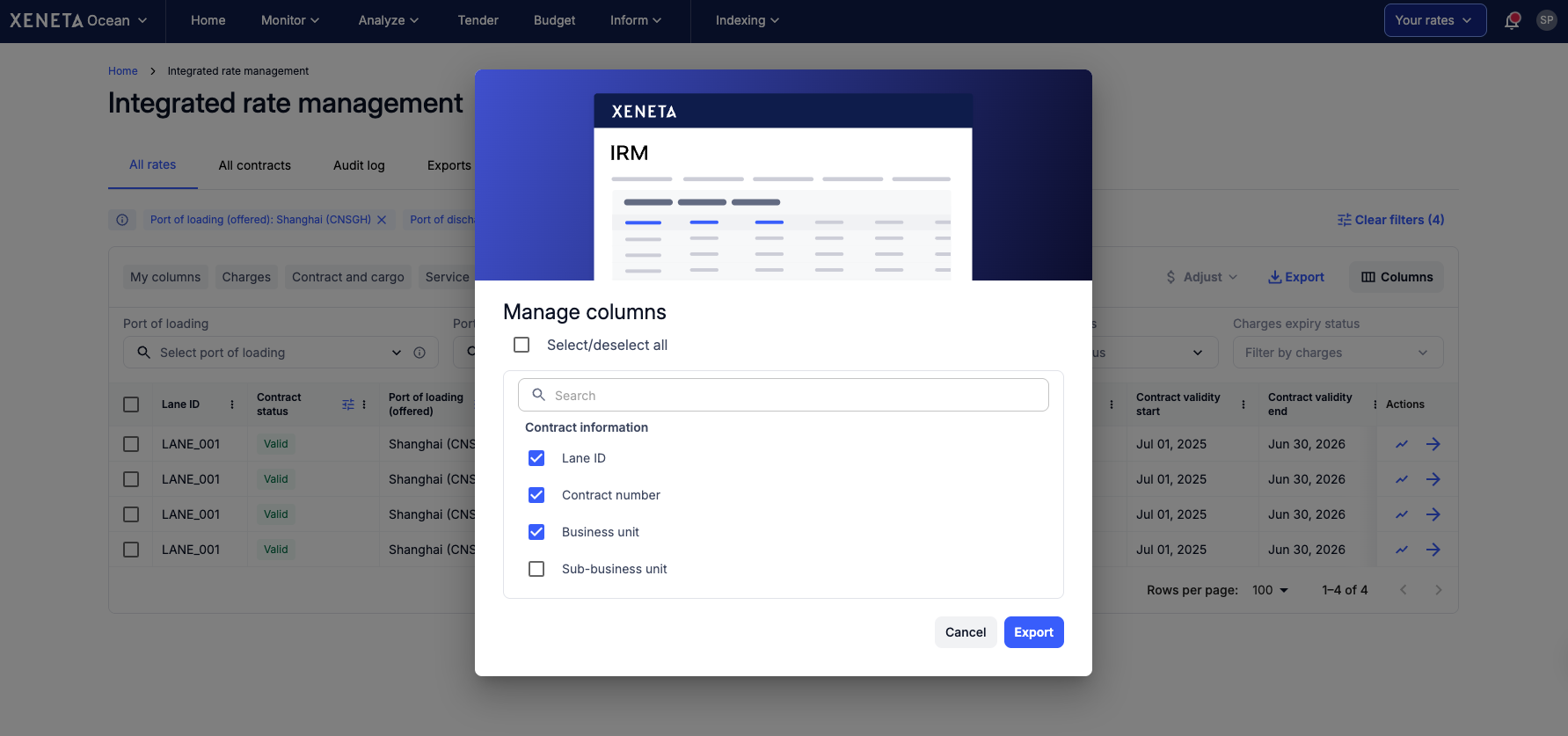
System columnsSummary totals columns (Origin charges, Ocean charges, Destination charges, and All-in rate) are excluded by default as these are system-generated values. You can optionally include them in your export from a separate section in the column selector.
Contract status and charges expiry status are not available for export. These values are dynamically calculated by the system each day, so including them in a static spreadsheet could quickly become misleading.
Export Processing
Exports are processed in the background so you can continue working while your file is generated. A banner will appear to let you know the export is in progress, and you'll be notified as soon as it's ready.
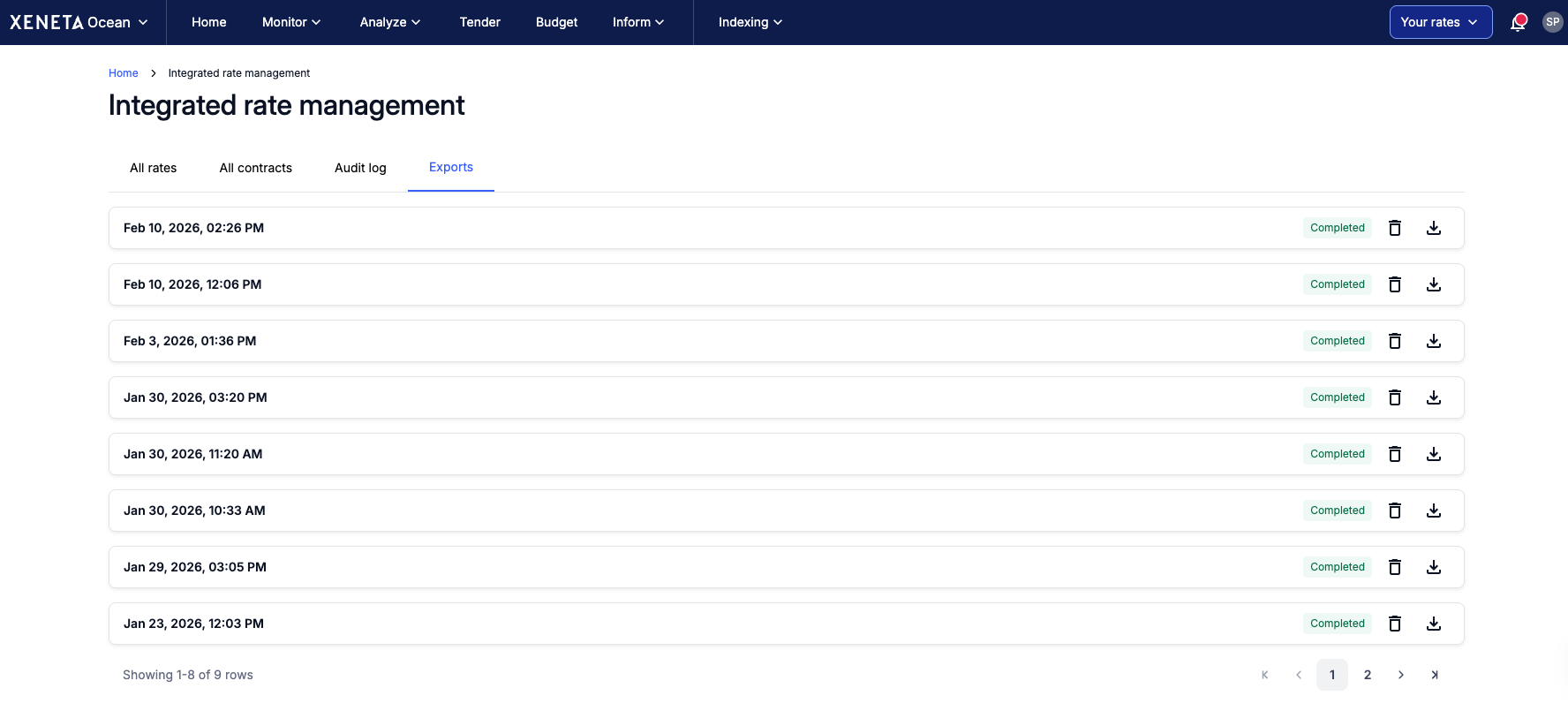
Once complete, you'll be directed to the Exports tab where you can download your file. The Exports tab also provides a history of all your previous exports, showing the date and time each was generated along with its status. Exported files remain accessible for 18 months.

Updated about 2 months ago