
How to upload and update your rates
This guide walks you through uploading your rate data to Rate Management, and updating it once it's live.
Prerequisites
- You must have Rate Management upload access for your company (your system administrator can request this through Xeneta)
- Your rate data can be in any format — there's no need to reformat it before uploading
You don't need to use a Xeneta template. Rate Management accepts your own rate sheet in whatever format your team already works in, and transforms it into Xeneta's structure during import.
Getting started
Navigate to Rate Management > Upload rates in the top navigation bar. You'll see two options:
- Upload rates to Rate Management — upload your rate sheet directly to Rate Management. Your rates are available instantly across the platform.
- Upload rates to Xeneta's My account — send your rate sheet to Xeneta's Rate Management Team for manual processing. Rates uploaded via this method take longer to appear and are not available in Rate Management.
Click Learn about Rate Management in the top right of the Upload Rates page to see an overview of what Rate Management offers.
If you choose to upload to Rate Management, continue reading below.
Uploading your rate sheet
Whether you're using your own format or Xeneta's template, the upload process is the same. The system uses AI to automatically transform your data into the correct structure for Rate Management.
Step 1. Upload your rate sheet
Click Upload rates to Rate Management and select or drag and drop your file. Only .xls and .xlsx formats are accepted.
Your data is processed securely using AI-assisted transformation in the following steps.
Step 2. Resolve issues
After uploading, the system analyses your file using AI-assisted transformation and presents a summary of what it has done — for example:
- Rates unpivoted so each container type has its own row
- Contract dates split into separate start and end columns
- Column names mapped to their Xeneta equivalents
- Irrelevant columns ignored during the mapping process
Review the summary and provide input where needed before proceeding.
Step 3. Map columns
If your rate sheet contains multiple container types in a single row, the system will split these into separate rows during transformation.
The system presents a column mapping table showing how your columns have been matched to Xeneta's format. You may be asked to resolve a small number of issues before proceeding:
Unmapped columns — if a column in your file couldn't be matched to a Xeneta column automatically, you'll be asked to review it. You can choose to map it to a Xeneta column from a dropdown, or skip it if there's no relevant match. Every unmapped column is shown explicitly — nothing is silently dismissed.
Mandatory fields with no mapping — if a required Xeneta field has no column mapped to it, ingestion is blocked until you resolve it. You can either select a column mapping or provide the value directly. Contract validity start and end dates are mandatory.
Once all issues are resolved, the Proceed button becomes active.
If your rate sheet includes any of the BAF, EBS, EU ETS, PSS or WRS surcharges, you'll be asked for a start date and an end date for each one. You can't continue until every one of these surcharges has a validity period, and the end date must be on or after the start date.
Use the filter menu to narrow the mapping table by status (Auto mapped, Auto structured, Inferred value, Mapped, Required field, or Unmapped). You can override any mapping by selecting a different Xeneta column from the dropdown.
Your confirmed column mappings and conflict resolutions are remembered, so the same decisions don't need to be made again on future uploads.
Step 4. Clean your data
The system restructures your file into Xeneta's format and checks every value. Problems are grouped by column rather than row by row. For each affected column you'll see the unrecognised values, how many rows each one affects, and guidance on what's accepted. Where the system is confident, it suggests the closest valid value, which you can accept or change. One answer fixes every row that has that value.
The checks cover:
- Fixed-list columns such as Incoterms, service modes, units of measurement, currencies and countries, with the closest valid value suggested
- Suppliers, carriers and ports, matched against Xeneta's supplier and port databases
- Numbers and quantities, including transit times, volumes, allocation percentages and the IMO class on hazardous cargo
- Contract and surcharge validity dates, including surcharge dates that fall outside the contract
- Duplicate rates within your file
If your rate sheet gives a country or a UN/LOCODE alongside a port name, the system uses it to pick the right port. For example, a Manzanillo in Panama isn't confused with Manzanillo in Mexico.
Some values are normalised automatically where the system is confident — for example, "40 HC" and "forty foot high cube" are recognised as the same container type, and separate container size and container type columns (such as 40 and HC) are combined into a single value (40HC).
Questions the system can't answer for you
Some questions can't be worked out from your data, such as whether pre-carriage or on-carriage is included in the ocean rate, whether origin or destination THC is included, or what unit of measurement a charge uses. Rather than answering rate by rate, choose a grouping — for example by supplier, carrier or contract number — and give one answer for the whole group. The number of rates in each group is shown before you apply an answer.
A group's answer is applied to every rate in it. Choose a grouping where all the rates share the same answer.
Duplicate rates within your file
If the same rate appears more than once in your file (all of the matching fields are identical and the validity periods overlap), the duplicates are shown with their row numbers and the values that differ. For each one, choose which row to keep, or confirm that both are intentional and should be kept.
Leaving rates out of the import
If you'd rather leave a rate out than fix it, open the dropdown on a flagged column (for example port of loading, port of discharge or supplier) and choose Don't import these rates. The option shows how many rows it affects.
- All rows with the same flagged value are left out together
- The whole rate is left out, even if other columns on it are also flagged
- To change your mind, pick a valid value for that column instead
Your confirmed answers are remembered, so the system asks fewer questions on your next import.
Step 5. Review the summary and confirm
Before anything is saved, the summary shows exactly what will happen. Nothing is written to Xeneta until you click Confirm import.
- Total rates to be imported, with the source file name and how many rows were imported out of the total rows in your file
- How your rows became rates — one rate per row, rates split from combined cells (such as 40DC/40HC), rates unpivoted from separate container columns, rows dropped as duplicates, and rows you chose to skip
- How many rates can be benchmarked against the Xeneta market, and the reason for each rate that can't. See Rates that can't be benchmarked. A rate can have more than one reason.
- How many rates are index-linked. These update automatically according to the rules you've defined in Index Contract Manager.
- Rates by container type, showing which types are benchmarked
Click Download Excel to check the sheet exactly as it will be written. It uses the Rate Management sheet format, leaves out empty columns, and doesn't include rows that were dropped as duplicates or skipped.
When you're happy, click Confirm import. The system checks whether any of your rates match rates that already exist — if so, you'll be shown a side-by-side comparison and can accept the updates or cancel. See How the system identifies which rate to update below for the full matching logic. If no matches are found, your rates are submitted as new rates.
You'll see a confirmation message: "Your rates are now live!"
Updating existing rates
There are two ways to change rates that are already in Rate Management.
Method 1: Rate Adjustment tool
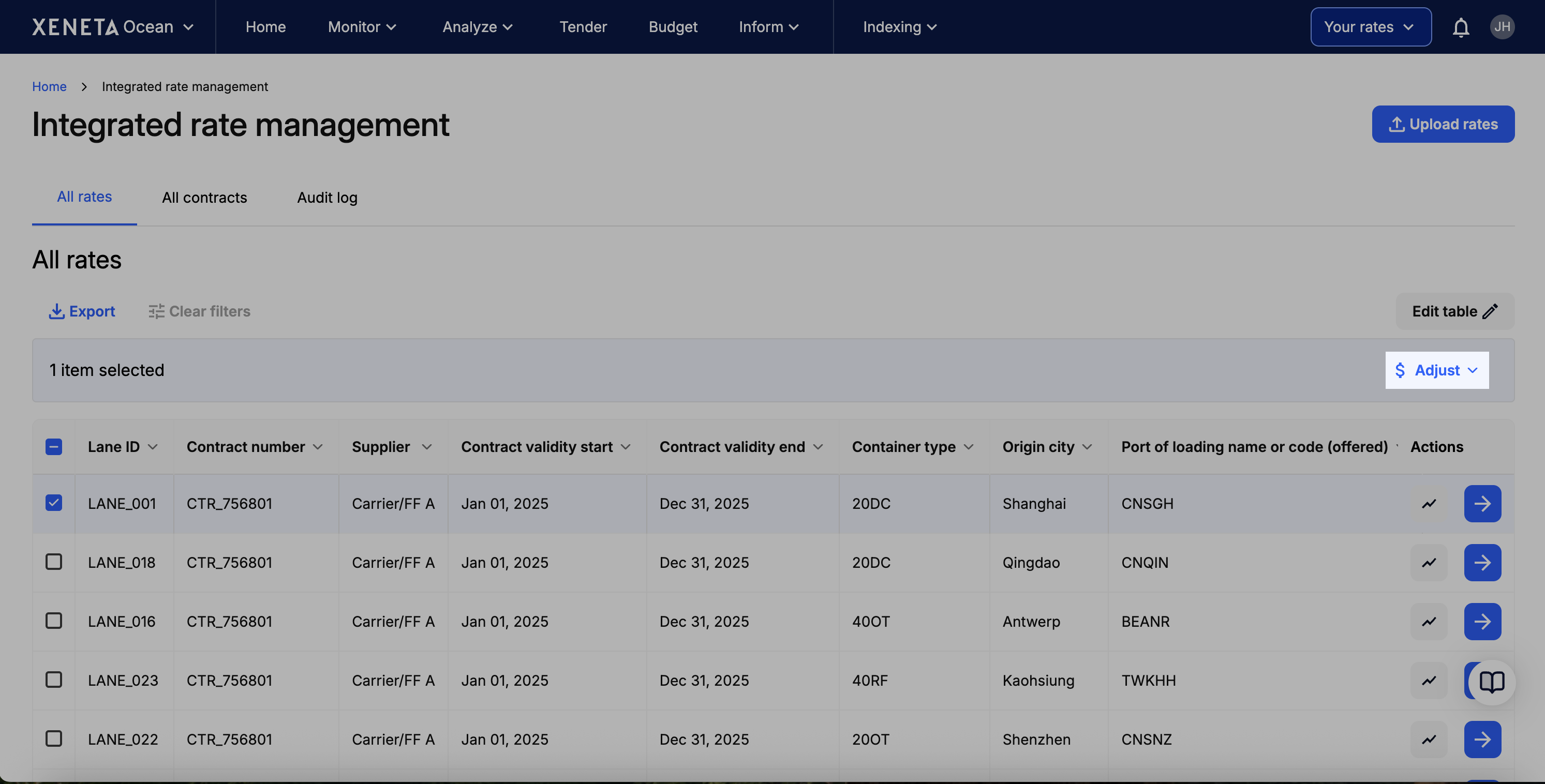
The Rate Adjustment tool lets you quickly update rates and charges in bulk by either a fixed amount or a percentage, without needing to prepare and upload a new rate sheet.
Step 1. Select the rate(s) you wish to adjust in the All Rates table and click Adjust rates.
Step 2. Choose your options from the dropdowns:
| Field | Options |
|---|---|
| Charge | Core rate components (Ocean Rate, Pre-carriage, On-carriage, OTHC, DTHC) and your uploaded surcharges (e.g. BAF, PSS, Destination fuel) |
| Adjustment | Increase, Decrease or Extend for all charges. Add or Remove for surcharges only (core rate components cannot be added or removed). |
| Metric type | % change, Unit rate per container, or Unit rate per TEU (not used for Extend) |
| Value | Your numeric value (not used for Extend) |
| New end date | Extend only: the date the charge should now run to |
Step 3. Click Apply changes. The updates are applied immediately to all selected rates.
Example: You've received a notification from your carrier about an 8% BAF increase. Select the relevant rates, choose BAF, Increase, % change, enter 8, and click Apply changes. Done in a few clicks, with no formulas or manual edits.
Extending a charge
Use Extend when a charge carries on unchanged past its current end date, for example a BAF your carrier has rolled over at the same value. Choose the charge, select Extend and pick a New end date. You don't enter a value, metric type or currency.
- Each charge keeps its current value, currency, unit of measurement and start date. Only the end date changes.
- Extend is only offered when the selected rates include the charge you chose. It is disabled if every selected charge already runs to its rate's contract end.
- The new end date must be after the charge's current end date. A charge can never be extended past its rate's contract end. If a selected rate's contract ends before your new end date, its charge is extended to the contract end only.
- Extend never shortens a charge. A charge that already ends on or after the new end date is left unchanged. To end a charge earlier, use Remove.
- Charges that have already been removed, or that have no end date, are skipped.
- If a charge has already expired, it keeps its original start date, so the extension also covers the period since it expired.
The summary table shows each rate's new validity before you apply the change. A dash means that charge won't be changed. Every extension is recorded in the Audit Log.
Example: Your carrier has confirmed its BAF stays the same until 31 March. Select the relevant rates, choose BAF, Extend, pick 31 March as the new end date, and click Apply changes.
Method 2: Updating rates via upload
If you prefer to update your rates by uploading a new rate sheet, prepare your changes and upload the file in the same way as your original upload.
How the system identifies which rate to update
When you upload a rate sheet, the system checks whether each rate matches an existing rate based on the following fields (all must match, with an overlapping validity period):
- Contract number
- Supplier
- Carrier
- Lane ID
- Container type
- Port of loading
- Port of discharge
- Origin service details (service mode, street address, city, state/province, ZIP code, country, and country code)
- Destination service details (service mode, street address, city, state/province, ZIP code, country, and country code)
- Hazardous classification
- Commodity
If all of these match, the system treats it as an update to the existing rate and will show you a side-by-side comparison of the current and new values for confirmation. You can either accept all updates or cancel. If any of these fields differ, the system treats it as a new distinct rate. For example, two rates that are identical except for their commodity are kept as two separate rates.
The same fields are used to find duplicate rates within a single file during Step 4.
How surcharges are handled during an update
Once a matching rate is identified, each surcharge is evaluated independently. The system compares what you've uploaded against what currently exists and determines whether to add, update, or remove each charge.
Leave a surcharge blank to keep it unchanged. If your upload doesn't include a value for a surcharge, the existing value is preserved. You don't need to include every surcharge in your upload, only the ones you want to change.
Set a surcharge to zero to remove it. The system treats zero as a removal, not as an update to a zero value.
New surcharges are added automatically. If your upload includes a surcharge that doesn't currently exist on the rate and the value is not zero, it will be added.
Some surcharges have fixed validity periods. Certain charges (e.g. LSS, CAF, GRI, ISPS, and others) always inherit the full contract validity period. You cannot set custom start and end dates for these. Other charges support custom validity dates. BAF, EBS, EU ETS, PSS and WRS always need an explicit start and end date in your upload. You're asked for them while resolving issues, and you can't continue without them. For the remaining charges that support custom dates (e.g. Suez Canal, Panama Canal, Origin/Destination Fuel, Origin/Destination Port Charges), the system defaults the start date to today (or the contract start date if later) and the end date to the contract end date if you don't provide dates.
Currency and unit of measurement are preserved. When updating a surcharge, the system always keeps the original currency and unit of measurement, even if different values are provided in your upload.
You can create multiple validity periods within a single rate to manage charges that update on different schedules. For example, your rate might have a 12-month contract validity while a surcharge such as BAF updates every 3 months. Add a separate validity period for each surcharge within the rate sheet, next to where you define the amount you pay for that charge. If a charge follows the same validity as the main contract, you can leave the validity fields empty, except for BAF, EBS, EU ETS, PSS and WRS, which always need explicit dates.
Data visibility after upload
Once the upload is confirmed, your rates are instantly accessible to all company users with Rate Management access.
Your rates will also be available across Xeneta's benchmarking products (Ocean Monitor, Ocean Analyze, and others) under 'Your rates'. This removes the previous 5-day SLA, giving you near real-time benchmarking capability.
Updated 6 days ago